Loading Photo Paper / Plain Paper
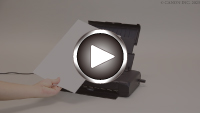
-
Prepare paper.
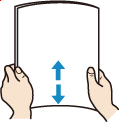
Align the edges of paper. If paper is curled, flatten it.
 Note
Note-
Align the edges of paper neatly before loading. Loading paper without aligning the edges may cause paper jams.
-
If paper is curled, hold the curled corners and gently bend them in the opposite direction until the paper becomes completely flat.
For details on how to flatten curled paper, see Check3 in Printed Surface Is Smudged/Scratched/Ink Blots/Paper Curl/Paper Is Smudged During Automatic 2-sided Printing.
-
-
Open the rear tray cover (A).
The paper output slot cover will open automatically.
-
Pull out the paper support (B) until the arrow (
 ) mark is aligned with the arrow (
 ) mark.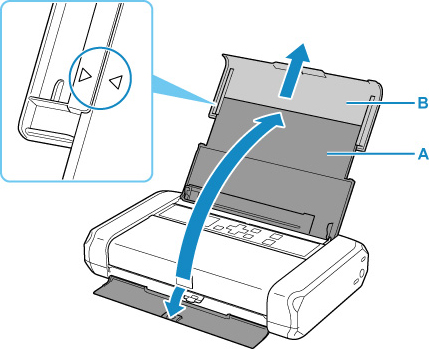
-
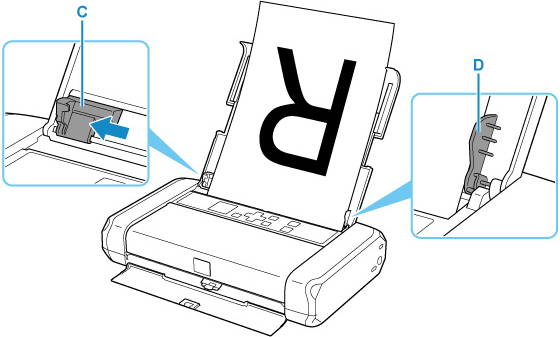
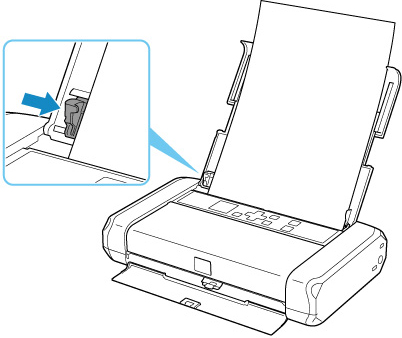
Slide the paper guide (C) to the left, and load the paper against the far right (D) of the rear tray WITH THE PRINT SIDE FACING YOU.
-
Slide the paper guide to align it with the paper stack.
Do not slide the paper guide too hard against the paper. The paper may not be fed properly.
 Important
-
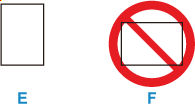
Always load paper in portrait orientation (E). Loading paper in landscape orientation (F) can cause paper jams.
Note-
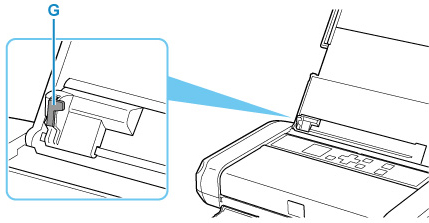
Keep the paper stack height below the tab (G) of the paper guide.
-
-
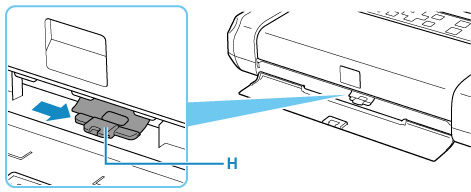
Set the paper thickness lever (H) to the right.
 Note
Note-
If the corners or edges of the paper are smudged, try to print with the paper thickness lever set to the left. It may improve print quality. Reset the paper thickness lever to the right when you finish printing.
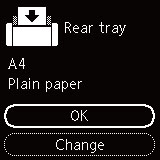
After closing the feed slot cover, the paper setting confirmation screen for the rear tray appears on the LCD.
-
-
If page size and media type on LCD match size and type of paper loaded in rear tray, select OK.
If not, select Change to change the settings in accordance with the size and type of the loaded paper.
Note
-
There are various types of paper, such as paper with a special surface coating for printing photos at optimal quality and paper suitable for documents. Each media type has specific preset settings (how ink is used and sprayed, distance from nozzles, etc.), that allow you to print to that type with optimal image quality. The wrong paper settings may cause poor printout color quality or scratches on the printed surface. If you notice blurring or uneven colors, increase the print quality setting and try printing again.
-
To prevent incorrect printing, this printer has a function that detects whether the settings for the paper loaded on the rear tray matches the paper settings. Before printing, make print settings in accordance with the paper settings. When this function is enabled, an error message is displayed if these settings do not match to prevent incorrect printing. When this error message is displayed, check and correct the paper settings.
